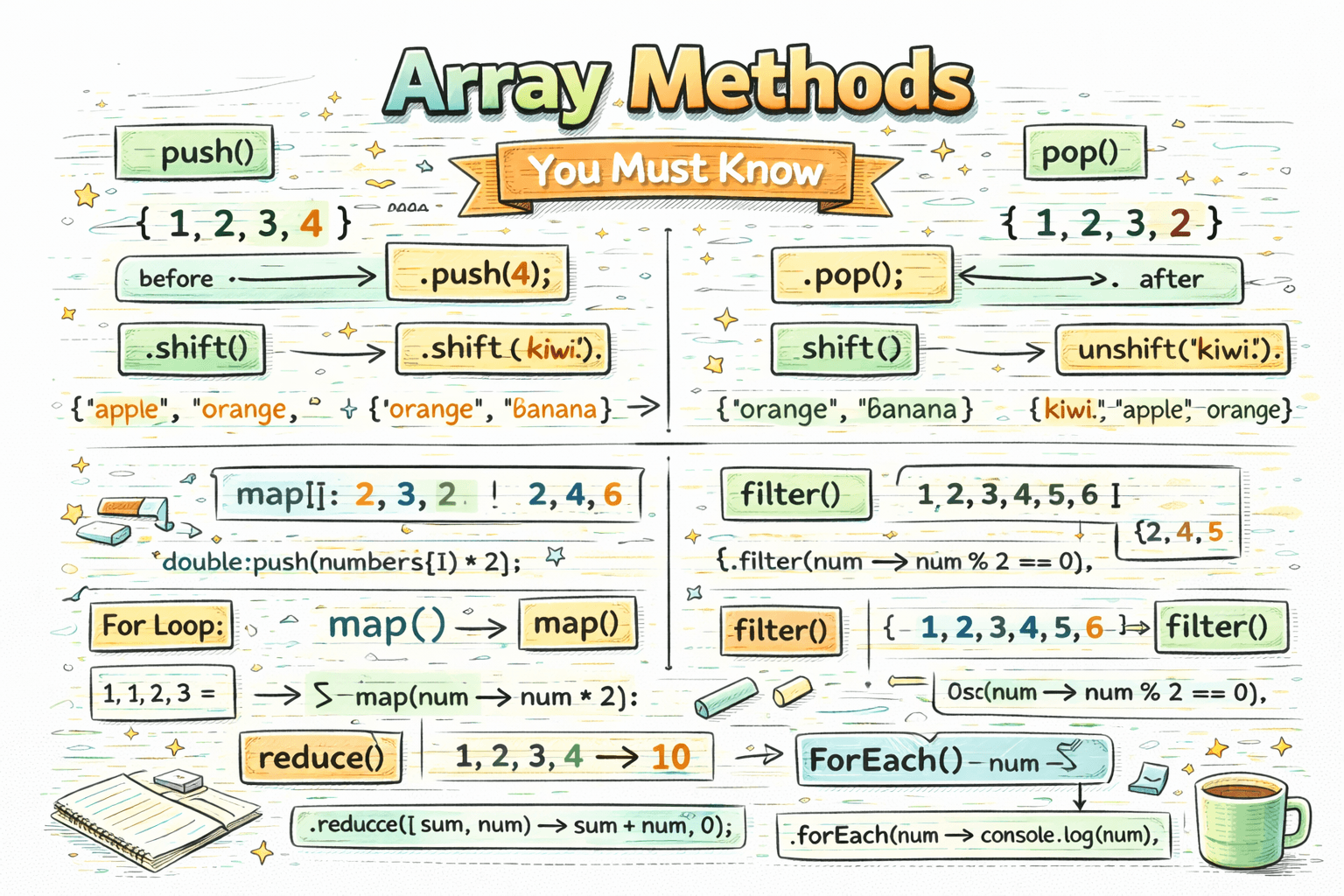
Arrays are one of the most used parts of JavaScript, but knowing how to create an array is only the beginning. Real JavaScript work starts when you need to add items, remove items, search for values, transform data, filter results, and calculate something from a list.
That is where array methods become important.
If you understand the right array methods, your code becomes shorter, clearer, and much easier to maintain. In this article, we will cover the methods you will use most often and explain what each one does, when to use it, and what kind of result it gives back.
Why Array Methods Matter
Imagine you are building a small app with:
- a list of tasks
- a list of products
- a list of users
- marks of students
You will constantly ask questions like:
- how do I add a new item?
- how do I remove the last item?
- how do I find one matching value?
- how do I create a new array from existing data?
- how do I keep only the values I need?
Array methods solve these problems without making you write long manual loops every time.
A Simple Sample Array
We will use a few small arrays throughout the article:
let fruits = ["apple", "banana", "mango"];
let numbers = [10, 20, 30, 40];
let users = [
  { id: 1, name: "Aman", active: true },
  { id: 2, name: "Riya", active: false },
  { id: 3, name: "Karan", active: true },
];
1. push()
push() adds one or more items to the end of an array.
let fruits = ["apple", "banana"];

fruits.push("mango");

console.log(fruits); // ["apple", "banana", "mango"]
You can also add multiple values:
fruits.push("orange", "grapes");
Use push() when:
- you want to append items at the end
- you are collecting values step by step
Important: push() changes the original array.
2. pop()
pop() removes the last item from an array.
let fruits = ["apple", "banana", "mango"];

fruits.pop();

console.log(fruits); // ["apple", "banana"]
It also returns the removed value:
let lastFruit = fruits.pop();
console.log(lastFruit);
Use pop() when:
- you want to remove the last item
- you need the removed value too
Important: pop() changes the original array.
3. unshift()
unshift() adds one or more items to the beginning of an array.
let fruits = ["banana", "mango"];

fruits.unshift("apple");

console.log(fruits); // ["apple", "banana", "mango"]
Use unshift() when:
- you want to add items at the start
Important: it changes the original array.
4. shift()
shift() removes the first item from an array.
let fruits = ["apple", "banana", "mango"];

fruits.shift();

console.log(fruits); // ["banana", "mango"]
It also returns the removed value.
Use shift() when:
- you need to remove the first item
Important: it changes the original array.
5. includes()
includes() checks whether a value exists in an array. It returns true or false.
let fruits = ["apple", "banana", "mango"];

console.log(fruits.includes("banana")); // true
console.log(fruits.includes("grapes")); // false
Use includes() when:
- you only need to know whether a value exists
This is much cleaner than writing a manual loop for a simple existence check.
6. indexOf()
indexOf() returns the index of a value. If the value is not found, it returns -1.
let fruits = ["apple", "banana", "mango"];

console.log(fruits.indexOf("banana")); // 1
console.log(fruits.indexOf("grapes")); // -1
Use indexOf() when:
- you need the position of a value
- you want to check existence and index together
7. slice()
slice() returns a portion of an array without changing the original array.
let numbers = [10, 20, 30, 40, 50];

let result = numbers.slice(1, 4);

console.log(result); // [20, 30, 40]
console.log(numbers); // [10, 20, 30, 40, 50]
Here:
1is the starting index4is the ending index, but not included
Use slice() when:
- you want a copy of part of an array
- you do not want to change the original array
This is one of the safest methods because it does not mutate the source array.
8. splice()
splice() can remove, replace, or add items in the middle of an array.
let fruits = ["apple", "banana", "mango"];

fruits.splice(1, 1);

console.log(fruits); // ["apple", "mango"]
Here:
1means start at index 11means remove 1 item
You can also replace:
let fruits = ["apple", "banana", "mango"];

fruits.splice(1, 1, "orange");

console.log(fruits); // ["apple", "orange", "mango"]
And add without deleting:
let fruits = ["apple", "mango"];

fruits.splice(1, 0, "banana");

console.log(fruits); // ["apple", "banana", "mango"]
Use splice() when:
- you need precise editing inside an array
Important: splice() changes the original array.
slice() vs splice()
These two are commonly confused.
slice():
- returns a portion
- does not change the original array
splice():
- edits the array directly
- can remove, add, or replace items
This difference is important in interviews and real code.
9. forEach()
forEach() runs a function once for every item in the array.
let fruits = ["apple", "banana", "mango"];

fruits.forEach((fruit) => {
  console.log(fruit);
});
Use forEach() when:
- you want to perform an action for each item
- you do not need a new array returned
A key point:
forEach()is for side effects like logging, printing, or updating something outside- it does not create a transformed array
10. map()
map() creates a new array by transforming every item.
let numbers = [1, 2, 3];

let doubled = numbers.map((number) => number * 2);

console.log(doubled); // [2, 4, 6]
Use map() when:
- you want a new array
- each input item becomes one output item
Another practical example:
let users = [
  { id: 1, name: "Aman" },
  { id: 2, name: "Riya" },
];

let names = users.map((user) => user.name);

console.log(names); // ["Aman", "Riya"]
Important:
map()returns a new array- it does not modify the original unless you do that manually
11. filter()
filter() returns a new array containing only the items that match a condition.
let numbers = [10, 20, 30, 40];

let bigNumbers = numbers.filter((number) => number >= 30);

console.log(bigNumbers); // [30, 40]
A practical example with objects:
let users = [
  { id: 1, name: "Aman", active: true },
  { id: 2, name: "Riya", active: false },
  { id: 3, name: "Karan", active: true },
];

let activeUsers = users.filter((user) => user.active);

console.log(activeUsers);
Use filter() when:
- you want some items, not all
- the result should still be an array
12. find()
find() returns the first item that matches a condition.
let users = [
  { id: 1, name: "Aman", active: true },
  { id: 2, name: "Riya", active: false },
  { id: 3, name: "Karan", active: true },
];

let user = users.find((user) => user.id === 2);

console.log(user); // { id: 2, name: "Riya", active: false }
Use find() when:
- you want one matching item
- you do not want an array of results
This is the difference from filter():
find()returns one itemfilter()returns an array of matching items
13. some()
some() checks whether at least one item matches a condition. It returns true or false.
let numbers = [10, 20, 30, 40];

let hasBigNumber = numbers.some((number) => number > 35);

console.log(hasBigNumber); // true
Use some() when:
- you want to know if any item passes the condition
14. every()
every() checks whether all items match a condition.
let numbers = [10, 20, 30, 40];

let allPositive = numbers.every((number) => number > 0);

console.log(allPositive); // true
Use every() when:
- the condition must be true for every element
This is a common interview comparison:
some()means at least oneevery()means all
15. reduce()
reduce() combines all array values into one final value.
This method is powerful, but beginners should first understand it with very simple examples.
Example: sum of numbers
let numbers = [10, 20, 30];

let total = numbers.reduce((sum, number) => sum + number, 0);

console.log(total); // 60
Here:
sumis the running totalnumberis the current array value0is the starting value
Another example:
let words = ["JavaScript", "is", "fun"];

let sentence = words.reduce((result, word) => result + " " + word);

console.log(sentence); // "JavaScript is fun"
Use reduce() when:
- you need one final output from many values
- such as total, count, grouped data, or summary value
For beginners, reduce() may feel harder than map() or filter(), and that is normal.
16. join()
join() combines array items into a string.
let fruits = ["apple", "banana", "mango"];

let result = fruits.join(", ");

console.log(result); // "apple, banana, mango"
Use join() when:
- you want to display array items as text
This is very common in UI work.
17. concat()
concat() combines arrays and returns a new array.
let a = [1, 2];
let b = [3, 4];

let result = a.concat(b);

console.log(result); // [1, 2, 3, 4]
Use concat() when:
- you want to merge arrays
- you do not want to modify the original arrays
18. sort()
sort() arranges array items.
let fruits = ["mango", "apple", "banana"];

fruits.sort();

console.log(fruits); // ["apple", "banana", "mango"]
For strings, this is straightforward. For numbers, you should pass a compare function.
let numbers = [40, 5, 100, 20];

numbers.sort((a, b) => a - b);

console.log(numbers); // [5, 20, 40, 100]
Use sort() when:
- you need values in a specific order
Important:
sort()changes the original array
19. reverse()
reverse() reverses the order of items.
let numbers = [1, 2, 3, 4];

numbers.reverse();

console.log(numbers); // [4, 3, 2, 1]
Important:
reverse()changes the original array
Methods That Mutate vs Methods That Return New Arrays
This is one of the most useful ways to understand array methods.
Methods that change the original array:
push()pop()shift()unshift()splice()sort()reverse()
Methods that return a new array or value without changing the original:
slice()map()filter()find()some()every()reduce()join()concat()includes()indexOf()
This matters because mutating data can sometimes create bugs if you are not expecting the original array to change.
A Practical Flow Example
Suppose you have a list of products:
let products = [
  { name: "Phone", price: 30000, inStock: true },
  { name: "Laptop", price: 70000, inStock: false },
  { name: "Tablet", price: 25000, inStock: true },
];
Get only products in stock
let availableProducts = products.filter((product) => product.inStock);
Extract only product names
let productNames = products.map((product) => product.name);
Find one expensive product
let expensiveProduct = products.find((product) => product.price > 50000);
Calculate total price
let totalPrice = products.reduce(
  (total, product) => total + product.price,
  0
);
This is exactly why array methods matter. They let you express your intent clearly.
Common Beginner Mistakes
- using
map()when you actually needfilter() - using
filter()when you only want one item and should usefind() - forgetting that
splice()changes the original array - forgetting that numeric
sort()needs a compare function - using
forEach()and expecting a new array back
Example mistake:
let numbers = [1, 2, 3];

let result = numbers.forEach((number) => number * 2);

console.log(result); // undefined
Why?
forEach()does not return a transformed arraymap()is the right choice here
Correct version:
let numbers = [1, 2, 3];

let result = numbers.map((number) => number * 2);

console.log(result); // [2, 4, 6]
Which Methods Should You Memorize First?
If you are just building a strong foundation, focus on these first:
push()pop()slice()splice()forEach()map()filter()find()some()every()reduce()
These are the ones you will see again and again in real projects and interviews.
Conclusion
Array methods are not just extra features in JavaScript. They are the normal way of working with lists of data. Once you understand how to add items, remove items, search values, transform arrays, filter results, and summarize data, your JavaScript becomes much more practical. The key is not to memorize every method at once, but to understand what problem each method solves and when it is the right tool to use.