Introduction
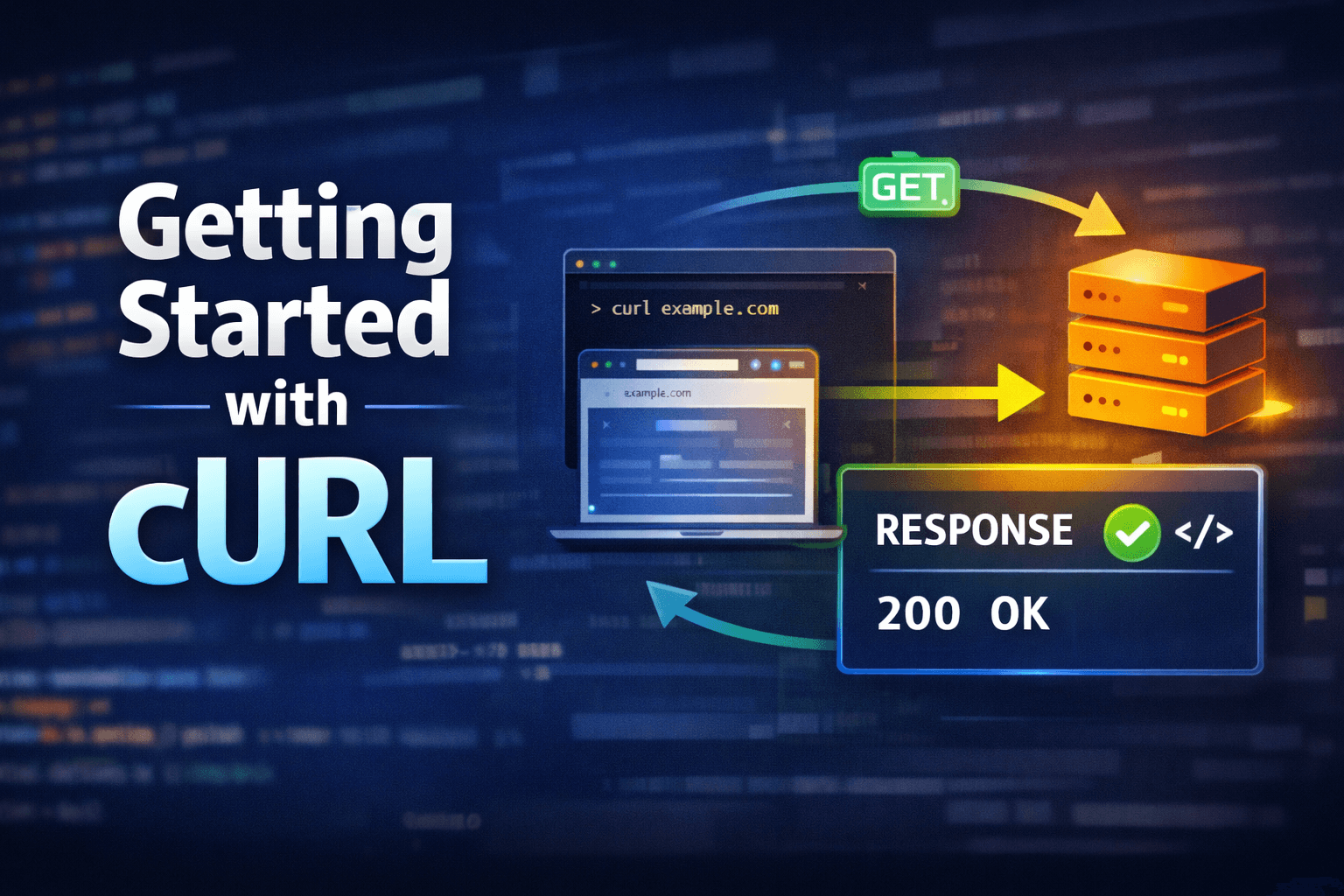
Across the Internet, every website and app you use depends on one simple thing: communication between your computer and a server. Computers are constantly talking to each other. Usually, you see this happening through a web browser like Chrome. But as a developer, you often need to talk to servers directly without a fancy interface. This is where cURL comes in.
What is cURL?
cURL stands for "Client URL" and is a tool that allows you to interact with web servers and APIs directly from the command line. It is widely used for testing endpoints, downloading files, and automating web requests. cURL supports various protocols, including HTTP, HTTPS, FTP, and more.
Installing cURL
Before you can use cURL, you need to ensure it's installed on your system. Most Unix-based systems (like Linux and macOS) come with cURL pre-installed. You can check if cURL is installed by running the following command in your terminal:
curl --version
If cURL is not installed, you can install it using the following commands:
- For macOS (using Homebrew):
brew install curl - For Ubuntu/Debian:
sudo apt-get install curl - For Windows: You can download the installer from the official cURL website.
Basic cURL Commands
Here are some basic cURL commands to get you started:
1. Making a GET Request
To fetch data from a URL, you can use the following command:
curl https://api.example.com/data
This command retrieves data from the specified URL and displays it in the terminal.
2. Making a POST Request
To send data to a server, you can use the -X POST option along with the -d flag to specify the data:
curl -X POST -d "param1=value1¶m2=value2" https://api.example.com/submit
This command sends a POST request with the specified parameters to the server.
3. Downloading a File
To download a file from a URL, you can use the -O option:
curl -O https://example.com/file.zip
This command downloads the file and saves it with its original name.
4. Adding Headers
You can add custom headers to your requests using the -H option:
curl -H "Authorization: Bearer YOUR_TOKEN" https://api.example.com/protected
This command includes an authorization header in the request.
5. Saving Output to a File
To save the output of a cURL command to a file, you can use the -o option:
curl https://api.example.com/data -o output.json
This command saves the response data to a file named output.json.
Conclusion
cURL is a powerful tool that allows you to interact with web servers and APIs directly from the command line. Whether you're testing endpoints, downloading files, or automating web requests, cURL provides a simple and efficient way to communicate with servers. As you become more familiar with cURL, you'll find it an invaluable tool in your development toolkit.
Happy curling!