Introduction
Git is usually the first tool developers learn after writing a few lines of code and for good reason. Once code starts changing, the real challenge isn’t writing it, but managing those changes safely and consistently.
This article introduces Git from a beginner’s perspective, focusing only on the essential concepts and commands needed to get started and feel comfortable using Git in real-world projects.
What is Git??
Git is a distributed version control system used to track changes in source code over time. Git is described as distributed because every developer has a complete local copy of the repository, including the full commit history. This allows developers to work offline, experiment independently, and collaborate without relying on a single central machine.
In simple terms, Git gives you control, safety, and clarity as your code evolves.
Why Git Exists??
When development starts, things are simple. One person writes code, makes changes, and everything feels manageable.
Problems begin when:
-
Code is shared with others
-
Changes are made in parallel
-
Updates come back without clear context
Suddenly, Everything feels unclear:
-
What changed
-
Who changed it
-
Why it was changed
-
Which version is the correct one
Creating zips, sending updated files back and forth, or manually merging changes id frustrating and doesn’t scale. It leads to confusion, overwritten work, and broken code.
Git exists to introduce order and traceability into this process. Instead of guessing, Git allow us:
-
Track every change made in working directory
-
Records who made the change and when
-
Preserves a clear history
-
Ensures everyone works from a single source of truth
Core Git Concepts
Repository
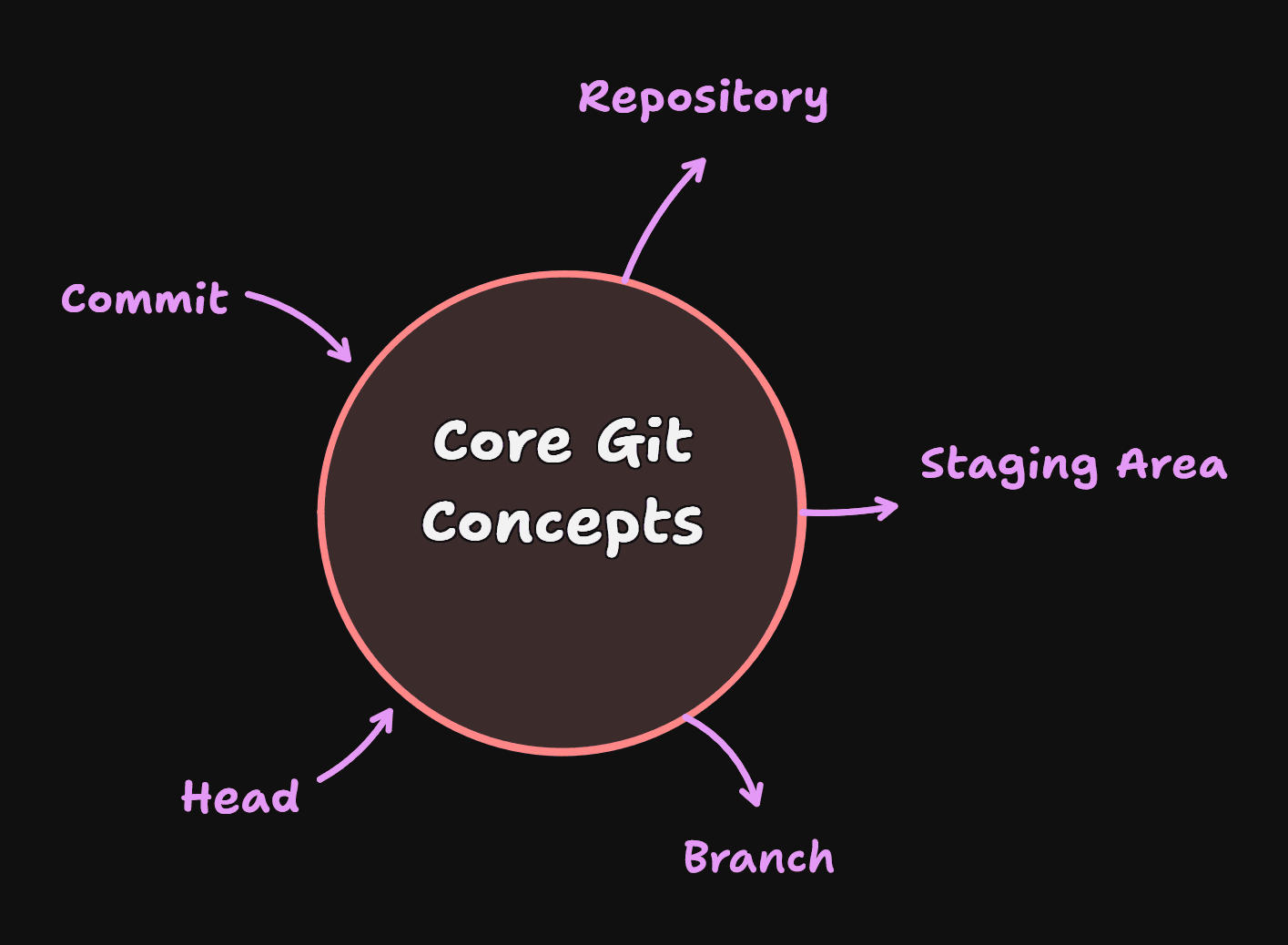
A repository is the project directory or current working directory which will tracked by Git. It contains project files, folders and the hidden .git folder (Created automatically when we initialize git into our project) that stores the complete history and metadata about our project.
Commit
A commit is a snapshot of your project at a specific point in time. Each commit records selected changes, a meaningful message explaining what changes are made.
Head
HEAD points to the current commit you are working on. It represents your current position in the project’s history.
Branch
A branch is an independent line of development. It allows developers to work on features or fixes without affecting the main or working codebase.
Staging Area
The staging area is an intermediate step between editing and committing. It allows you to choose exactly which changes should be included in the next commit.
How Git Works??
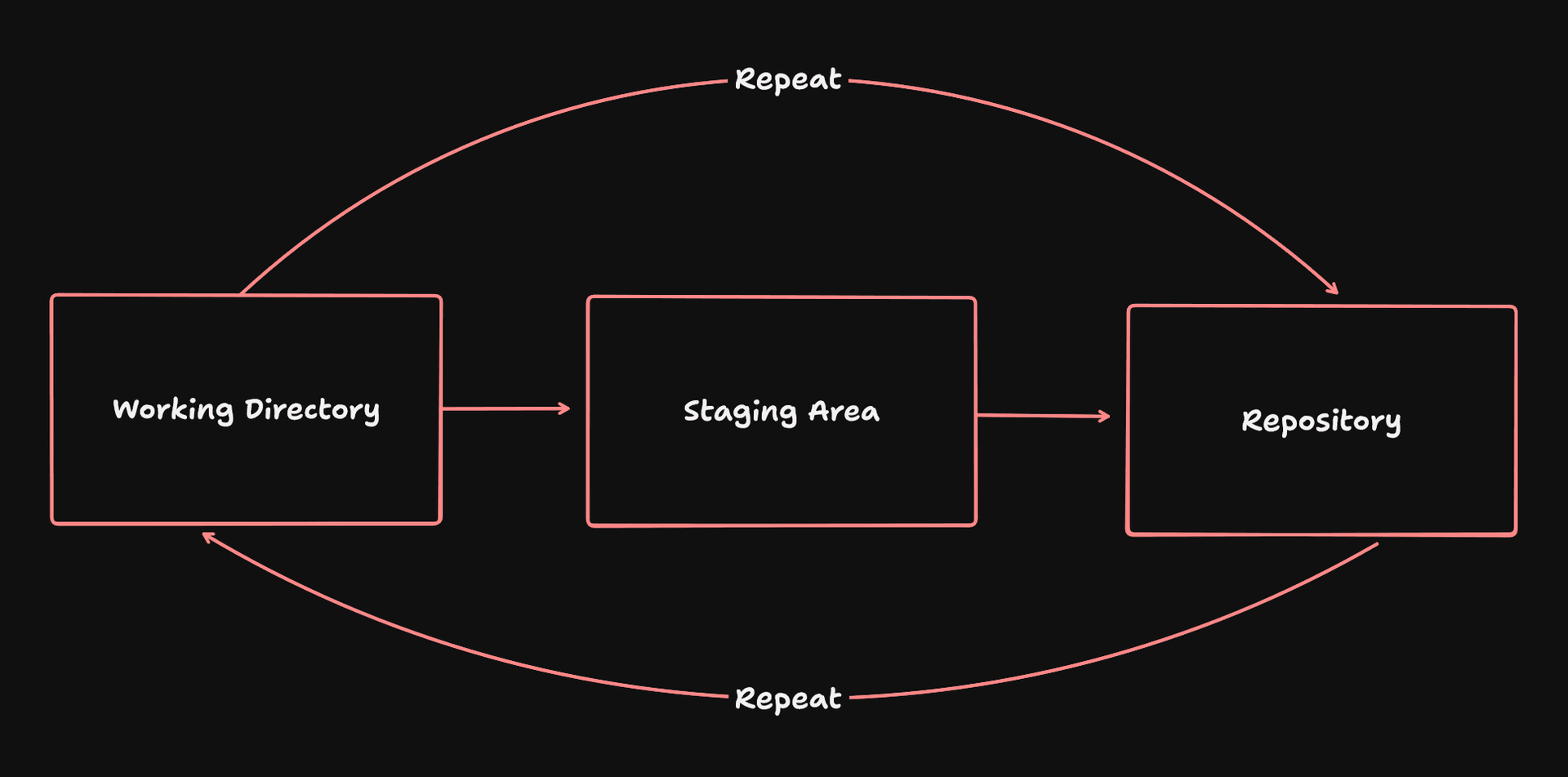
Working Directory:
This is where you write and edit your code. Git can detect the changes, but nothing is saved yet. Think of this as your active workspace.
Staging Area:
This is a preparation step. You choose which changes are ready to be saved next. Git does not force you to commit everything at once.
Repository:
Once changes are committed, Git stores them as a permanent snapshot. You can return to this version at any time in the future.
work → choose → save → repeat
Essential Git Commands
Before using any Git commands, Git must be installed on your system.
You can download Git from the official website:
After installation, verify it by running:
git --version
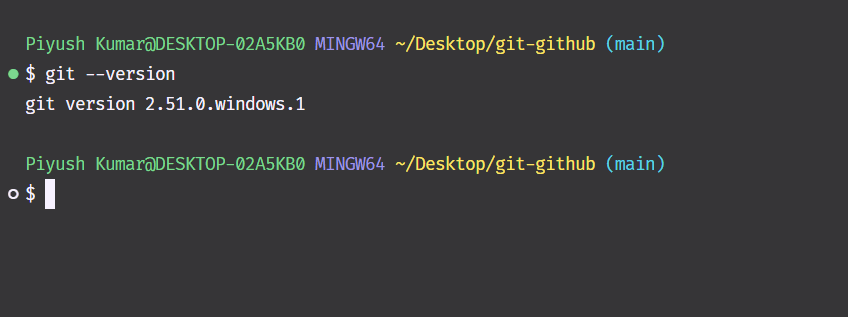
If Git is installed correctly, this command will print the installed version.
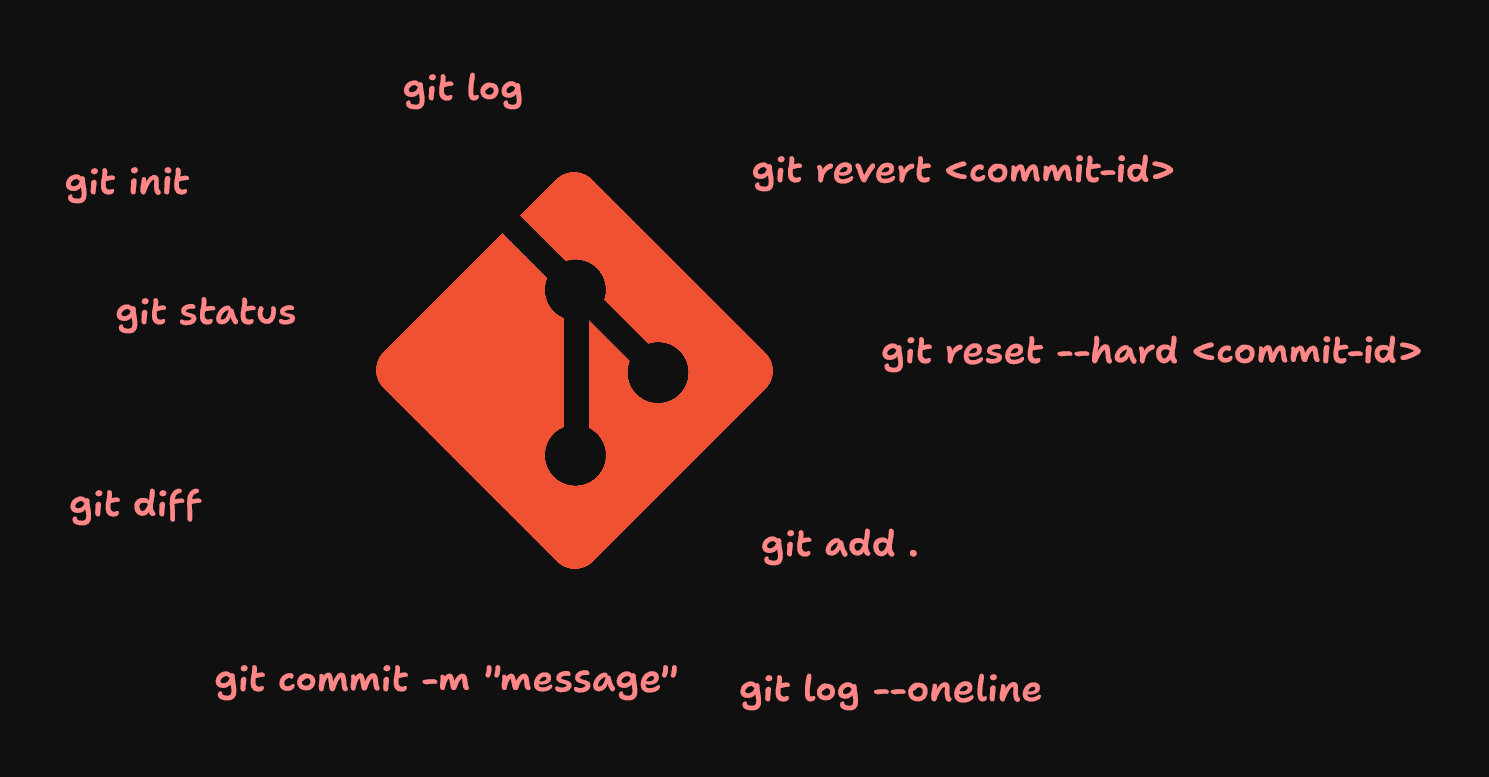
git init
git init
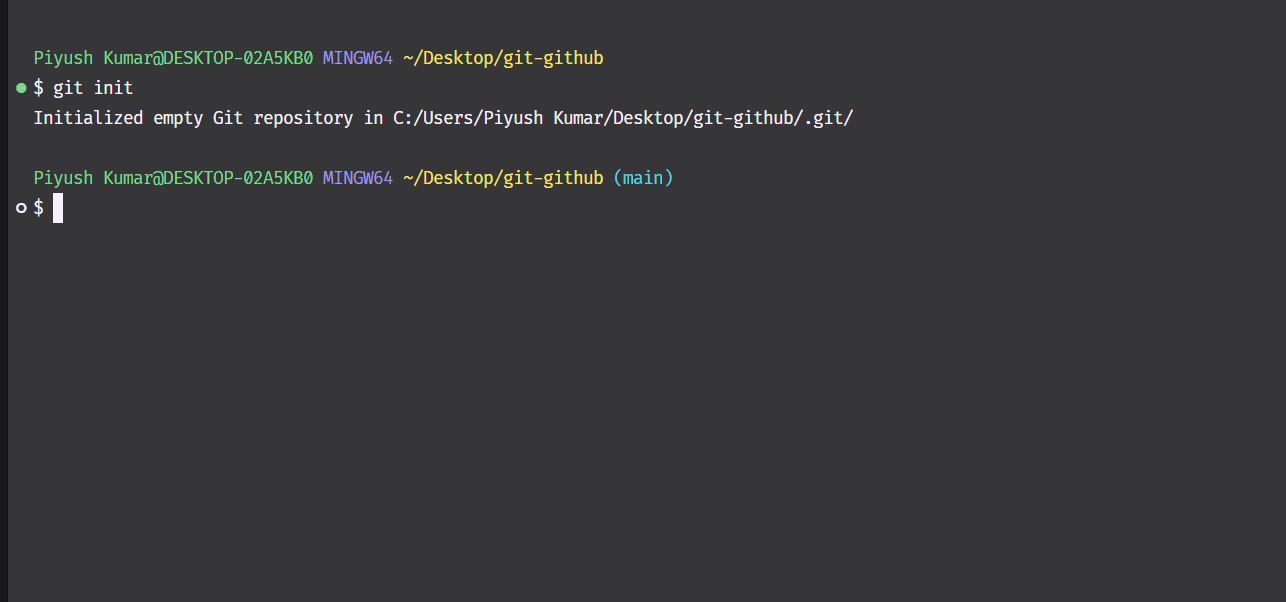
Initializes Git in the current folder and starts tracking the project. It also creates a hidden .git directory where Git stores the entire version history.
This command is used once when starting a new project.
git status
git status
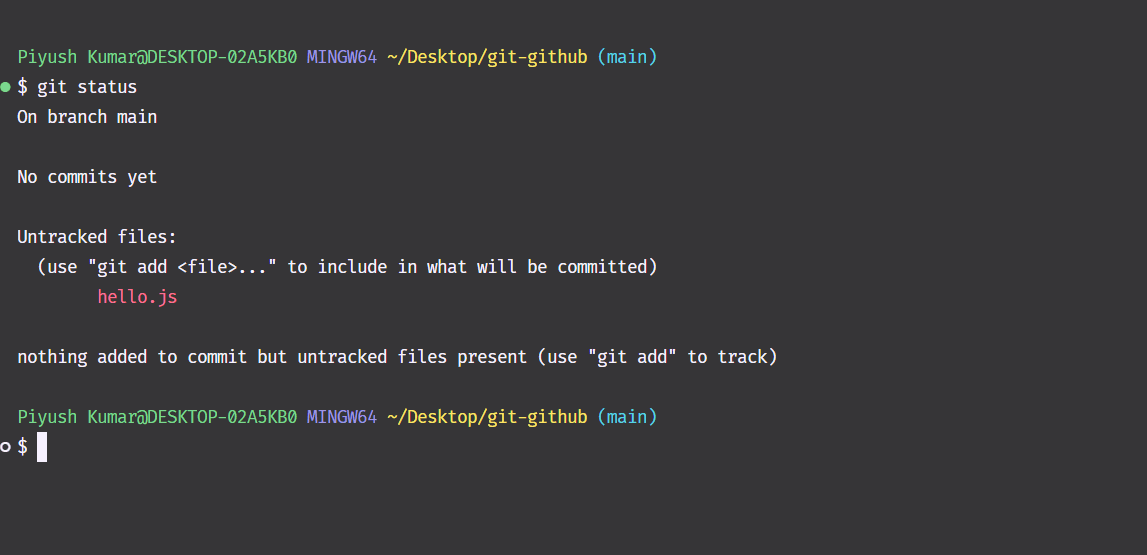
Shows the current state of your project. By running this command you can see:
-
Which files are modified
-
Which files are staged
-
Which files are untracked
git add <filename> / git add .
git add hello.js
or
git add .
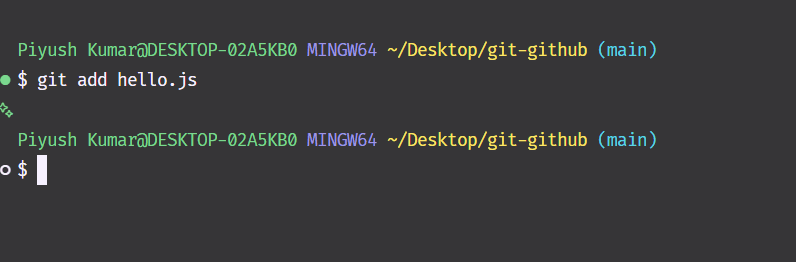
This command moves changes from the working directory to the staging area.
-
Use
git add <filename>to stage a specific file -
Use git add . to stage all modified files at once
Once staged, these changes are marked as ready to be committed, but they are not saved yet.
To confirm this, run git status again.
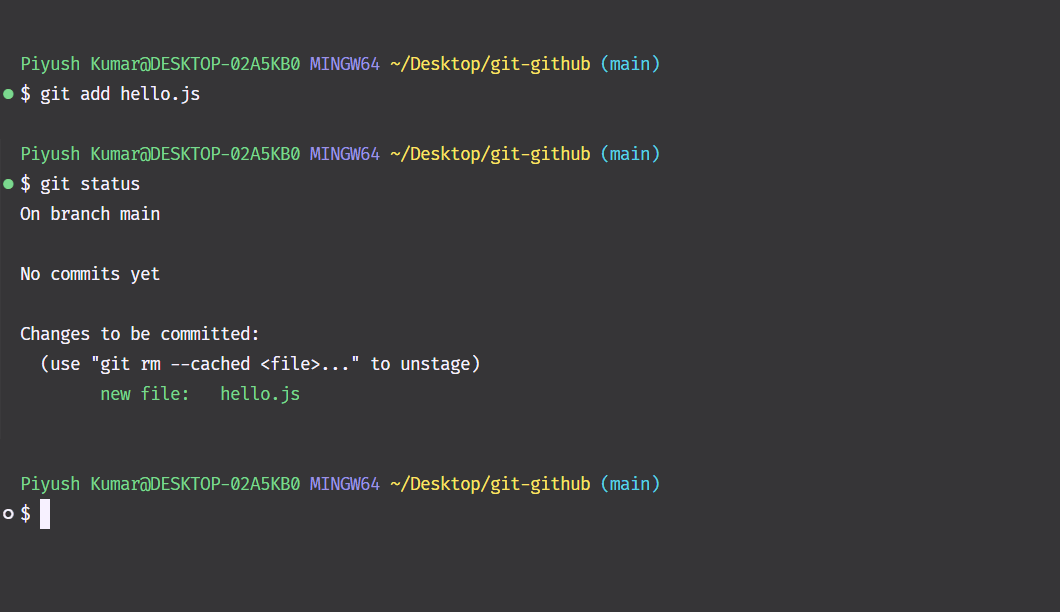
You can see that Git now shows the files under “Changes to be committed”, indicating they are successfully staged.
git commit -m "message"
git commit -m "add hello.js"
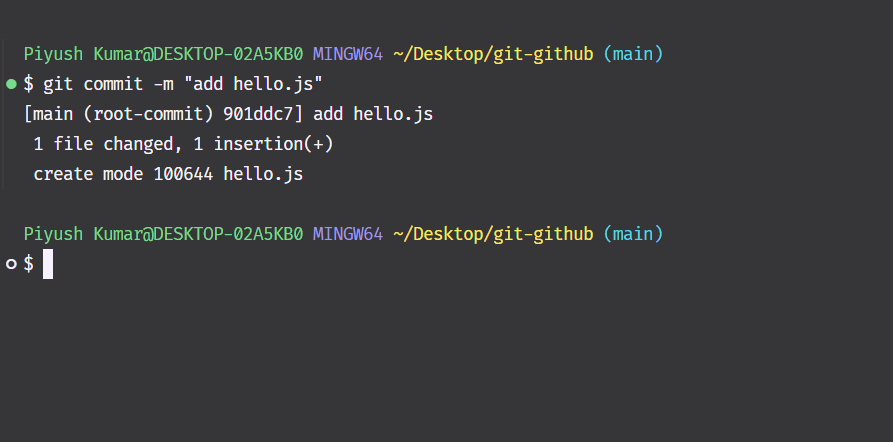
Saves staged changes as a commit. Each commit should describe what changed and why. Good commit messages make project history easier to understand.
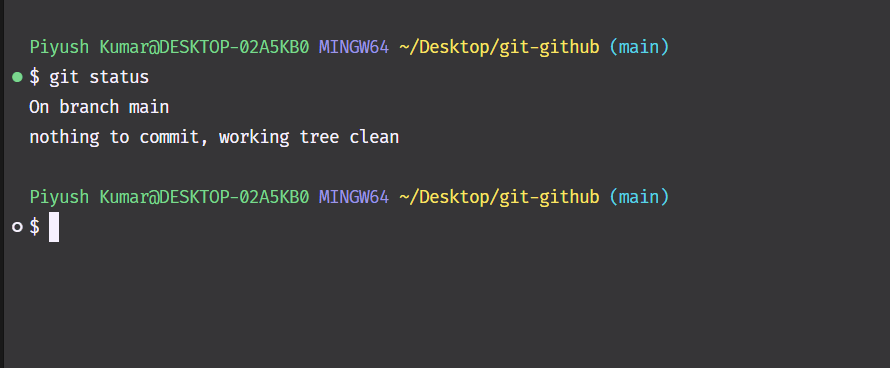
Git now shows that the working directory is clean, which means all changes have been successfully committed and there is nothing left to save at the moment. This confirms that the changes have moved from the staging area into the repository.
git log
git log
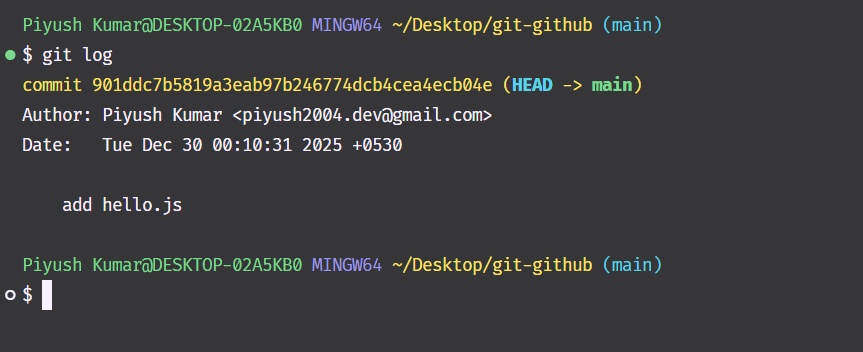
This command displays the commit history of the repository.
It shows:
-
Commit IDs
-
Author
-
Date
-
Commit messages
git log —oneline
git log --oneline
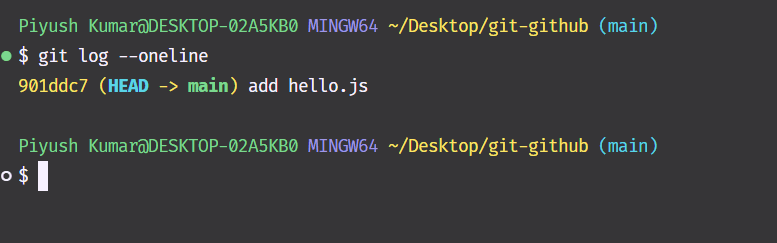
This command shows the commit history in a compact, single-line format.
Each commit is displayed with:
-
901ddc7 is the short commit ID
-
Add hello.js is the commit message
-
(HEAD -> main) means:
-
HEAD is currently pointing to this commit
-
This commit is the latest one on the main branch
-
git diff
git diff
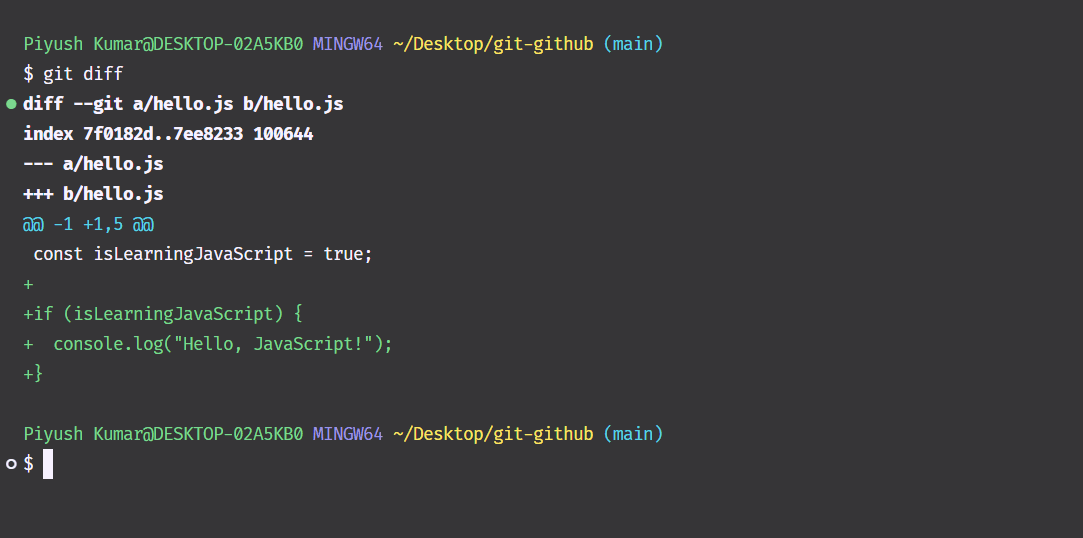
This command shows the difference between changes in your project.
It is commonly used to:
-
Review changes before committing
-
Compare two commits using their commit IDs
git diff helps you understand what exactly changed instead of guessing, making it a useful command before staging or committing code.
git revert <commit-id>
git revert <commit-id>
This command creates a new commit that reverses the changes made in a specific commit.
Instead of deleting history, Git records the undo action as a new commit. This makes git revert the safest way to undo changes, especially when working on shared or collaborative projects.
git reset --hard <commit-id>
git reset --hard <commit-id>
This command moves the project or Head back to a specific commit and removes all commits after it.
It permanently discards changes and rewrites history. Because of this, git reset --hard should be used with extreme caution, particularly in shared repositories.
Beginner rule: If you’re unsure, avoid
git reset --hardand prefergit revert.
Conclusion
Git is not about remembering commands. It is about understanding how your code changes over time. Once you understand the basic flow, Git becomes easy to use and very helpful.
By practicing a few essential commands, you can work on your projects with more confidence and less fear of breaking things.
If you are new to Git, keep using it in your daily coding. And if you have any tips, questions, or learnings from your own experience, feel free to share them in the comments. It can help other beginners as well.
If this article helped you understand Git a little better, feel free to share it with another beginner
Happy coding 🙂👋